Microsoft Entra Id (formerly Azure Active Directory) is an integrated cloud identity and access solution. Although Microsoft Entra ID supports the OpenID Connect protocol, you should use the Microsoft Entra ID when setting up SSO within Fiscal Technologies.
Register an app registration for FISCAL with a Microsoft Entra ID
To allow users to sign into FISCAL with a Microsoft Entra provider you must register an application with Microsoft Entra ID. To learn how to register your application with Microsoft Entra ID, read: Quickstart: Register an application with the Microsoft identity platform on Microsoft Docs.
While setting up your app, make sure you use the following settings:
- When asked to set a Redirect URl, select Web and enter https://login.fiscaltec.com/login/callback
- Generate a Client secret in "Certificates & Secrets". Record the Secret Value and Client ID, you will need both later.
- On API permissions page Grant admin consent for the User.Read permission.
Configure Microsoft Entra ID in FISCAL
-
Log into FISCAL and navigate to the Authentication settings page within Customer Settings > Organisation Settings.
- Enable Microsoft Entra ID and enter your Microsoft Entra ID Domain
- You can find this on your Microsoft Entra ID directory's overview page in the Microsoft Azure portal.
- Enter the Client ID and Client Secret of the client application registered in Microsoft Entra ID.
-
Click the Save button.
Logging in using Microsoft Entra ID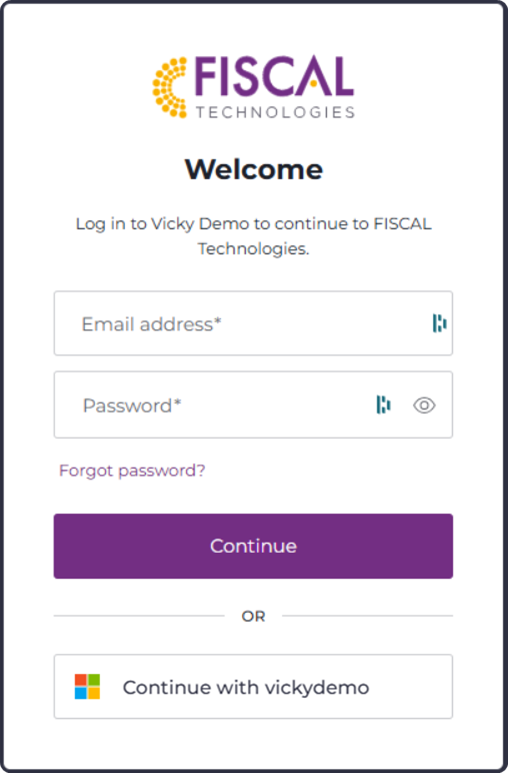
Once the Entra settings have been saved within FISCAL, on the login page, the option to log in using your identity provider will show as a button "Continue with mycustomer" (where mycustomer is the name of your FISCAL site).
Once you have tested the SSO integration, email and password login can be disabled on the Single Sign On Management Settings page to ensure that users must use SSO to access Fiscal Technologies.
FAQs
Q. What Identity API is used for connections to Microsoft Entra ID?
A. Microsoft Identity Platform (v2)
Troubleshooting
AADSTS50011: The redirection URI specified in the request does not match the redirect URIs configured for the application.
This means that the Redirect URI on the App Registration in Microsoft Entra ID is incorrect. Make sure that the App registration in Microsoft Entra ID includes the value https://login.fiscaltec.com/login/callback
Need admin approval
This happens when admin consent is not granted in Microsoft Entra ID. On the API permissions page for the App Registration in Microsoft Entra ID Grant admin consent for the User.Read permission.
Failed to obtain access token
This error message can appear in a number of scenarios. Please check the following:
- Make sure the correct Secret Value for the App Registration in Microsoft Entra ID has been set in the Single Sign On Management Settings page in Fiscal Technologies.
- On the Authentication page for the App Registration in Microsoft Entra ID, under Implicit grant and hybrid flows select ID Tokens
AADSTS50105: Your administrator has configured the application to block users
This happens if the App Registration in Microsoft Entra ID has been configured to require assignment, but the logged in user has not been granted access to the application. Contact your IT department to grant access to the application.
AADSTS90002: Tenant not found
This can happen if the Microsoft Entra ID Domain is incorrect. Make sure that the correct domain has been entered on the Single Sign On Management Settings page in Fiscal Technologies.
AADSTS700016: Application with identifier was not found
This can happen if the Client ID is incorrect. Make sure that the correct Client ID has been entered on the Single Sign On Management Settings page in FISCAL Technologies.
The email address is not in the allowed domains for this connection
This happens if the logging in has an email domain (e.g. @example.com) which is not in the list of permitted domains for your customer. Contact customer support or your CSM to authorize additional email domains.